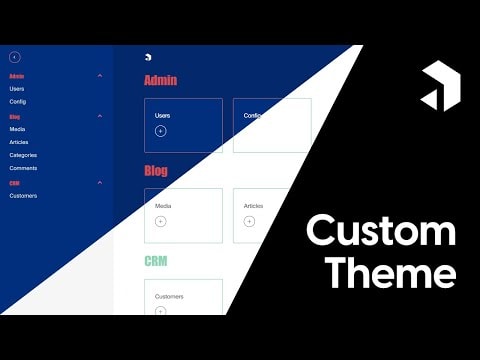
Creating a Custom Payload CMS Theme: Tips & Tricks
Join me as we dive into creating a custom theme for Payload CMS. In this guide, you'll learn essential tips and tricks to customize your Payload CMS theme effectively. Discover how to enhance your development workflow and create a unique user experience with Payload CMS.
Creating a Custom Payload CMS Theme: Tips & Tricks
Welcome to our comprehensive guide on creating a custom theme for Payload CMS! In this tutorial, we'll explore the exciting world of Payload CMS theming and provide you with essential tips and tricks to get started.
What is Payload CMS?
Payload CMS is a modern, open-source content management system built with React and Node.js. It offers a flexible and extensible platform for developers to build custom applications and websites. With its powerful API and customizable admin panel, Payload CMS is an excellent choice for developers looking to create unique and tailored user experiences.
Why Custom Themes?
Custom themes allow you to tailor the look and feel of your Payload CMS admin panel to match your brand or project requirements. By creating a custom theme, you can enhance the user experience, improve workflow efficiency, and make your admin panel truly your own.
Getting Started
To get started with creating a custom theme for Payload CMS, follow these steps:
- Set Up Your Project: Begin by setting up a new Payload CMS project. You can use the Payload CLI to quickly scaffold a new project.
- Understand the Theme Structure: Familiarize yourself with the structure of a Payload CMS theme. Themes are typically composed of CSS, JavaScript, and configuration files that define the appearance and behavior of the admin panel.
- Customize the CSS: Start by customizing the CSS files to change the colors, fonts, and layout of the admin panel. You can use CSS preprocessors like SASS or LESS to make your styles more maintainable.
- Modify the JavaScript: Next, modify the JavaScript files to add custom functionality or override default behaviors. This can include adding new components, modifying existing ones, or integrating third-party libraries.
- Update the Configuration: Finally, update the theme configuration files to define the overall structure and behavior of your custom theme. This can include setting default values, defining custom fields, or configuring the admin panel layout.
Tips & Tricks
- Use the Payload CLI: The Payload CLI provides a range of commands to help you scaffold, build, and manage your Payload CMS projects. Make sure to leverage these tools to streamline your development process.
- Leverage the Payload API: The Payload API offers a powerful set of endpoints for interacting with your content. Use these APIs to fetch, create, update, and delete content programmatically.
- Customize the Admin Panel: The admin panel is highly customizable. You can add custom components, modify the layout, and even create custom views to tailor the admin experience to your needs.
- Optimize Performance: Ensure your custom theme is optimized for performance. This includes minifying your CSS and JavaScript files, leveraging caching, and optimizing your assets.
- Test Thoroughly: Always test your custom theme thoroughly to ensure it works as expected. This includes testing on different devices, browsers, and screen sizes to ensure a consistent user experience.
Conclusion
Creating a custom theme for Payload CMS can significantly enhance the user experience and improve your development workflow. By following the tips and tricks outlined in this guide, you'll be well on your way to creating a unique and tailored admin panel for your Payload CMS projects. Happy coding!
Submitted